How did Chatbot GPT learn TCL-TK
2025-12-27 Saturday 2h 37 am
- Discussion
- Suggestions on Templates
- Template:: Best Practices Header for TCL
- Template:: Simple Status Bar + Menu Bar Skeleton
- Template:: Basic ttk::notebook with 3 Tabs
- Template:: Toolbar with Buttons
- Template:: Dynamic Tab Addition
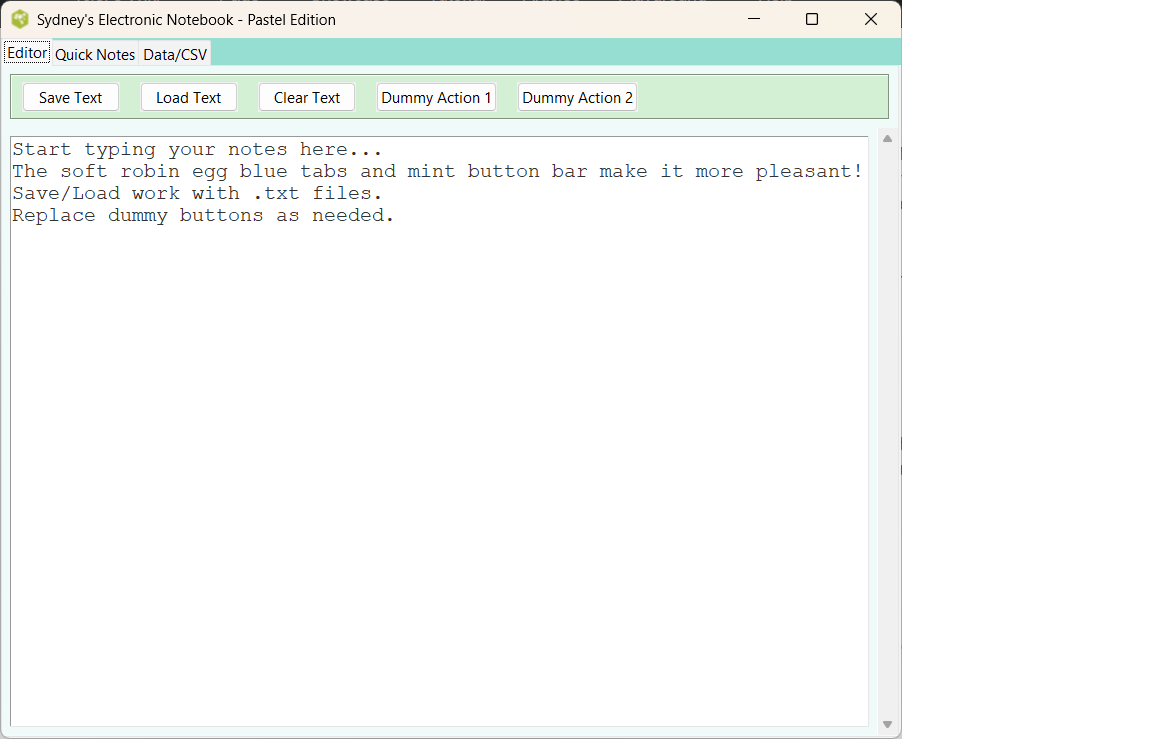
- Template:: Syndey's Electronic Notebook
- Summary on Best Practices in TCL
Discussion
How did Chatbot GPT learn TCL-TK? I was told they put a few TCL-TK books on a table, they placed a computer on them and voilà, bingo! the next morning the genius chat was ready to code in our favorite language! :-)
I am kidding! :-)
At one point, after the usual going around in circles with Chat GPT, I said to it: Here is what we'll do: 1) 2) 3) 4 5) and to my own surprise, it coded exactly what I wanted. It even praised me for asking the right questions in the right sequence.
That goes to show that there must be a few hundred functions already coded such as the ones I present in my home page and this explains why the Chat can perform so well.
I also noticed that everytime I came up with an error, the Chat produced the error description.
I also noticed that if you ask the Chat to code something and you don't get any errors, you're a happy camper. In fact creating a function from scratch is what it does best.
However, if you run into a problem, if you have a bug, well brace yourself and get ready for a long long night. In fact the Chat does not think so it won't give you the proper answer.To the contrary, it will pretend it has fixed the bug, it will give a seemingly proper explanation and it will never work. This can go on for hours with the brave chat repeating: I understand your frustration. -)
My advice to all those who will work with ChatGpt or any other A-intelligence tool: Once you have a little function done, keep it in a file and place it somewhere. Do this systematically. Why? Because it could very well happen that down the line, this code will be screwed up and you'll have to start all over. It is then that you'll congratulate yourself for your vigilance. I for one number each revision. This method has saved me a lot of work and headaches so far and it is key to working with Chatbot.
Suggestions on Templates
Brief Suggestions for "Vibe-Coding" Success with Tcl/Tk
gold 12/27/2025. I believe that part of "Vibe-Coding" problem is not targeting a specific TCL language version. If the user does not request version number and the AI model does see a TCL version number targeted in the pre-prompt. There is a lot of code for older TCL versions on the web without version info or best practices as currently defined. Then the AI Models are searching and looking at ' not modern code", " not best TCL practices", or file dependencies. But tell me different.
Here is example from experience: I asked for TCL code, but did not spell out Tool Control Language and version number. Several AI models came up with some very humorous alternates like TCL for Tool Command Language in almost a renaming contest for TCL.
Save every working snippet — number them like rev001_notebook.tcl, rev002_toolbar.tcl. You’re 100% right: AI Models can accidentally break or omit good code later.
Sydney Yes indeed! In fact at one point I had a weird error that would not go away despite Chat bot's 50th fix. It was something like Create tool command already used or something like this. So, instead of spending 5 days trying to fix the bug, I went back 20 versions earlier and I started from there adding stuff that worked 10 versions later. This is the Key to programming with an AI app. If you don't follow that rule, you'll hate yourself saying: Man I had the code earlier why didn't I save it? Mind you you can go back in the conversation and get the right code but this is quite a hassle! So get ready to do a lof of editing!
Build step-by-step — Get one thing working perfectly (e.g., notebook), save it, then add toolbar in a new copy.
Never trust AI debugging blindly. If AI model says “fixed,” test immediately. If error persists, revert to last known good revision.
Pre-Prompt tip that worked for some:
List steps 1) 2) 3) clearly — e.g.,
“1. Create notebook.
Sydney 2025-12-27, 9h 26 pm How do you do that? A paper notebook?
gold 12/28/2025. "Notebook" or "Sydney's Electronic Notebook" is name for electronic info stored in the starter TCL program. Template:: , see code below. One would have to dump a text, CVS file, or special formatted file as electronic and savable copy. This is a brief example of front end to GUI, and there would a lot of work to develop a full working program and saving file program from scratch. The Wiki imposes some limits on length of brief code examples from previous Admin comms.
Yes, there are many lengthy notebook examples from the Search Engine on the TCL Wiki. See pages like ttk::notebook, notebook, and tkinter. But your working TCL set-up or workstation may complicate the program details in saving files, whether Unix or Windows 11 on ActiveState.
2. Add three tabs named Home/Tools/Help.
3. Put a label in Home.
4. No extra code.”
ChatGPT and other AI Models didn’t “learn” Tcl/Tk from books on a table — but it did train on thousands of real scripts, wiki pages, and forums. That’s why fresh creations often work, but fixes hallucinate sometimes.
Note: Experiences are based on ChatGPT and AI Model versions up to 2025; results may vary with newer models. Never trust AI to debug code blindly. Opinion: Always test fixes yourself, preferably in the TCL Wiki Playground.
Keep these and other templates in a folder called tcl_templates/. When you want something a new project, copy the closest one to your project goal, rename to myapp_rev001.tcl, and build from there. You’ll stay sane and productive!
Template:: Best Practices Header for TCL
# Best Practices Header for Tcl/Tk 8.6+
package require Tk 8.6     ;# Ensures modern version only
# Use TCL/TK 8.6 or above, for collegiate lab setup
# ttk:: commands auto-available — NO package require ttk!
# Use ttk:: for themed widgets
# Use grid for layouts (or pack consistently)
# Brace all expr: { } for performance
# Use "best practices" Tool Control Language
# Retain this header for version control.
Template:: Simple Status Bar + Menu Bar Skeleton
# tcl
# statusbar_menu.tcl
package require Tk
# 12/28/2025. works on TCL Wiki playground
# Menu bar
menu .menubar
. configure -menu .menubar

# File menu
menu .menubar.file -tearoff 0
.menubar add cascade -label "File" -menu .menubar.file
.menubar.file add command -label "New" -command {puts "New file"}
.menubar.file add command -label "Open" -command {puts "Open file"}
.menubar.file add separator
.menubar.file add command -label "Exit" -command {exit}

# Main content area
ttk::label .main -text "Your app content here" -font {Helvetica 20}
pack .main -fill both -expand yes -pady 20

# Status bar at bottom
ttk::label .status -text "Ready" -relief sunken -anchor w
pack .status -side bottom -fill x
Template:: Basic ttk::notebook with 3 Tabs
# notebook_template.tcl
package require Tk

ttk::notebook .nb
# 12/28/2025. works on TCL Wiki playground
pack .nb -fill both -expand yes -padx 10 -pady 10

# Create pages
ttk::frame .nb.home
ttk::frame .nb.tools
ttk::frame .nb.help

# Add tabs
.nb add .nb.home -text "Home"
.nb add .nb.tools -text "Tools"
.nb add .nb.help -text "Help"

# Simple content
ttk::label .nb.home.l -text "Welcome Home!" -font {Helvetica 18 bold}
pack .nb.home.l -pady 50

ttk::button .nb.tools.b -text "Do Something" -command {puts "Tool button pressed!"}
pack .nb.tools.b -pady 20

ttk::label .nb.help.l -text "This is the Help tab."
pack .nb.help.l -padx 20 -pady 20

.nb enableTraversal
Template:: Toolbar with Buttons
(using ttk::frame as toolbar)
# toolbar_template.tcl
package require Tk

# Main window
# 12/28/2025. works on TCL Wiki playground
ttk::frame .toolbar -relief raised -borderwidth 2
pack .toolbar -side top -fill x -padx 5 -pady 5

# Buttons in toolbar
ttk::button .toolbar.new -text "New" -command {puts "New file"}
ttk::button .toolbar.open -text "Open" -command {puts "Open file"}
ttk::button .toolbar.save -text "Save" -command {puts "Save file"}
ttk::separator .toolbar.sep -orient vertical
ttk::button .toolbar.quit -text "Quit" -command {exit}

pack .toolbar.new .toolbar.open .toolbar.save -side left -padx 2 -pady 2
pack .toolbar.sep -side left -fill y -padx 8 -pady 2
pack .toolbar.quit -side right -padx 2 -pady 2

# Main content area
ttk::label .main -text "Main working area below toolbar" -font {Helvetica 16}
pack .main -fill both -expand yes -padx 20 -pady 20
Template:: Dynamic Tab Addition
# dynamic_add.tcl
package require Tk

ttk::notebook .nb
pack .nb -fill both -expand yes

ttk::frame .nb.page1
.nb add .nb.page1 -text "Page 1"

# Function to add a button later (call anytime)
proc add_later_button {} {
    ttk::button .nb.page1.later -text "Added Dynamically!" -command {
        puts "I was added after window appeared!"
    }
    pack .nb.page1.later -pady 10
}

# Initial content
ttk::label .nb.page1.init -text "Initial content"
pack .nb.page1.init -pady 20

# Add button after 2 seconds (demo)
after 2000 add_later_button
Template:: Syndey's Electronic Notebook
This template is starter TCl code for an Electronic Notebook, using the ttk:notebook features. There some dummy buttons installed for future procedures or functions.
The ttk::notebook widget is defined as "A Tk (or rather Ttk) widget that stacks a bunch of widgets on top of each other in a window, with some tabs at the top to allow users to select between the widgets."
This is a tabbed container widget (introduced in Tk 8.5 as part of the themed Tk (ttk) widgets), commonly used for interfaces like property dialogs or tabbed browsers. Users click tabs to switch between stacked pages (frames or other widgets), with only one page visible at a time.
# Template: Syndey's Electronic Notebook
# using  ttk::notebook features
# with Editor Tab + Buttons (Save/Load/Dummies)
# gold 12/28/2025 – Full extension: Save/Load/Clear + dummy buttons
# Run with: wish thisfile.tcl
# (tested in Tcl Playground and Windows 11 ActiveTcl)

package require Tk

wm title . "Syndey's Electronic Notebook - Tcl/Tk"
wm geometry . 900x700

ttk::notebook .nb
pack .nb -fill both -expand 1

# Tab 1: Editor (text + button bar)
frame .nb.editor
.nb add .nb.editor -text "Editor"

# Button frame
frame .nb.editor.btnbar -relief groove -bd 2
pack .nb.editor.btnbar -side top -fill x -pady 6 -padx 6

# Text widget
text .nb.editor.txt -undo true -wrap word -font {Courier 12} -yscrollcommand {.nb.editor.sb set}
scrollbar .nb.editor.sb -orient vertical -command {.nb.editor.txt yview}
pack .nb.editor.sb -side right -fill y
pack .nb.editor.txt -expand yes -fill both -padx 6 -pady 6

.nb.editor.txt insert end "Start typing your notes here...\nSave and Load work with .txt files.\nReplace dummy buttons as needed!\n"

# Procedures
proc saveText {} {
    set file [tk_getSaveFile -defaultextension .txt -filetypes {{Text Files {.txt}} {All Files *}}]
    if {$file ne ""} {
        set fh [open $file w]
        puts -nonewline $fh [.nb.editor.txt get 1.0 end-1c]
        close $fh
        tk_messageBox -message "Saved to $file" -icon info
    }
}

proc loadText {} {
    set file [tk_getOpenFile -filetypes {{Text Files {.txt}} {All Files *}}]
    if {$file ne ""} {
        set fh [open $file r]
        .nb.editor.txt delete 1.0 end
        .nb.editor.txt insert end [read $fh]
        close $fh
    }
}

proc clearText {} {
    .nb.editor.txt delete 1.0 end
    tk_messageBox -message "Text cleared!" -icon info
}

proc dummyAction1 {} {
    tk_messageBox -message "Dummy Action 1: Replace this command!" -icon info
}

proc dummyAction2 {} {
    tk_messageBox -message "Dummy Action 2: Add your own feature here" -icon question
}

# Buttons (using ttk for modern look)
ttk::button .nb.editor.btnbar.save  -text "Save Text"    -command saveText
ttk::button .nb.editor.btnbar.load  -text "Load Text"    -command loadText
ttk::button .nb.editor.btnbar.clear -text "Clear Text"   -command clearText
ttk::button .nb.editor.btnbar.d1    -text "Dummy Action 1" -command dummyAction1
ttk::button .nb.editor.btnbar.d2    -text "Dummy Action 2" -command dummyAction2

pack .nb.editor.btnbar.save .nb.editor.btnbar.load .nb.editor.btnbar.clear \
     .nb.editor.btnbar.d1 .nb.editor.btnbar.d2 -side left -padx 8 -pady 4

# Tab 2: Notes
frame .nb.notes
.nb add .nb.notes -text "Quick Notes"
label .nb.notes.l -text "Placeholder for quick notes or todo list" -font {Helvetica 14}
pack .nb.notes.l -pady 50

# Tab 3: Data
frame .nb.data
.nb add .nb.data -text "Data/CSV"
label .nb.data.l -text "Future: Add CSV load/save or table view here" -font {Helvetica 14}
pack .nb.data.l -pady 50

focus .nb.editor.txt
Summary on Best Practices in TCL
gold 12/25/2025. Not exhaustive list, seems temp sticking to Best Practices Page on Wiki. Best Practices Tcl Style Guide
Here's a concise summary of the key Tcl/Tk best practices listed there (focused on modern 8.6+ usage):
Always brace your expressions — Use {} around expr, if, while, for conditions (e.g., if {info exists var} { ... }). This enables byte-code compilation for speed and avoids double-substitution surprises.
Use string eq (or ne) for string comparisons — In Tcl 8.4+, prefer eq over == to avoid accidental numeric conversion.
Construct callbacks safely — Use procs or list-based commands instead of raw strings in bindings/events for security and performance.
Prefer command prefixes/scripts for flexibility — Allow users to pass partial commands (e.g., with {*} expansion).
Use clear Boolean values — true/false or yes/no in variables/configs instead of just 1/0 for readability.
Avoid namespace command collisions — Don't shadow built-ins; use ensembles carefully.
Delay command resolution when possible — Capture namespace context (e.g., namespace code) rather than resolving early.
No unnecessary new syntax — Leverage Tcl's uniform code/data model instead of inventing DSLs.
gold 12/25/2025. Added categories, so can find this Wiki page in Wiki.
| Category Numerical Analysis | Category Toys | Category Calculator | Category Mathematics | Category Example | Toys and Games | Category Games | Category Application | Category GUI |